



A VPN (Virtual Private Network) is an online privacy tool that creates an encrypted connection between your device and the internet. It hides your IP address and online activities from your Internet Service Provider (ISP) and shields you from potential threats, especially on public Wi-Fi.
Using a VPN is straightforward: install the VPN app and connect to a server in one click. However, the process can vary by device, while some security features require manual activation.
In this guide, I’ll show you how to use a VPN step by step, no matter what device you’re using. You’ll find out what you can do using a VPN and how to enable key features.
 TL;DR: How to use a VPN
How to pick a VPN
Choosing the right VPN for you depends on whether you’ll use it for streaming, torrenting, or overall privacy. Still, there are important factors to consider in all cases:
- Reputation – check each VPN you’re interested in for any past data leaks, review their privacy policies, and independent audits.
- Servers – VPNs should have a wide server network available so you can freely bypass geo-restrictions. Look for services that offer servers in dozens or even over a hundred countries.
- Security features – choose VPNs that offer the latest security measures, such as the industry-standard AES encryption and modern VPN protocols like WireGuard. Also, look for extra features like a kill switch to protect yourself from data leaks or RAM-only servers to ensure your data doesn’t get stored indefinitely.
- Speed – check research on how VPNs perform in terms of speed. For example, you can review the West Coast Labs performance report to compare NordVPN, ExpressVPN, Proton VPN, Mullvad VPN, and Norton VPN speeds.
- Compatibility – it’s important to choose VPN services that support all major operating systems – Windows, macOS, Android, and iOS – so you can protect all your devices.
- Simultaneous connections – I’d recommend getting VPNs that offer multiple device coverage, so you can protect all of your and your family’s devices.
- Price – compare the pricing of reputable services to ensure you get an affordable VPN that offers the best value for your money. For example, Total VPN offers plans from $1.59/month, while Surfshark prices start from $1.99/month.
- Customer reviews – review Reddit forums, Trustpilot reviews, or other sources to understand how other users enjoy a specific VPN.
How to use a VPN explained in 5 steps
Using a VPN is easy, even for beginners. All you have to do is buy a VPN subscription, install the VPN app, connect to a server while connected to the internet, and that’s all.

Let’s take a look at the detailed instructions on how to use a VPN.
Step 1: Choose a VPN
The first step to setting up a VPN is finding a reputable VPN provider and purchasing it. Review VPN comparisons and tests to find out which service offers the features that suit your needs best. You should focus on VPNs with powerful security features, like DNS leak protection, ad & threat blocker, and huge server networks.
As for pricing, you’ll find that most VPNs offer monthly, 1-year, and 2-year subscriptions. If your budget allows it, I’d suggest opting for the 2-year plans. They usually offer the cheapest prices per month, providing the best value for your money in the long run.
If you’re considering a free service, I’d recommend freemium VPNs instead. That’s because completely free VPNs that don’t offer premium plans usually don’t have a steady income. They may end up selling your data to third parties without approval or containing malware.
Step 2: Download and install the VPN
Once you buy a VPN, you’ll receive a verification email to complete account registration and set up a password. After setting up your account, you’ll need to download the VPN app and install it. I’ll use NordVPN as an example to show you how to do it. Here are the detailed steps:
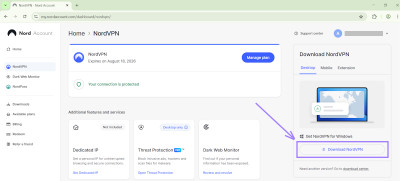
- After verifying your email, open your VPN account and click “Download” to download the .exe file.
- Open the .exe installer app and follow the installation instructions.
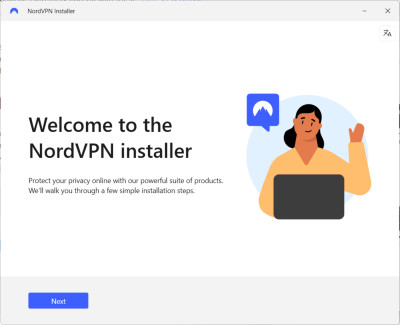
- Accept the terms of the privacy policy. If a VPN offers a browser extension, it may ask you to choose which apps you want to install.
- Once the installation is complete, you can launch the app.


Step 3: Log in to your account
Open the VPN app and log in to your account. Some VPNs may offer multiple ways to log in:
- The email address and password you created for the VPN account
- Google or Apple account
- One-time login code
For extra security, I highly suggest enabling multi-factor authentication (MFA). You can usually find this option by going to the VPN app > Settings > Account > Set up MFA.
Step 4: Connect to a server
After logging into the VPN app, you can connect to a server by using the quick connect option or picking a specific country or city to connect to.
Here’s the main difference and when to use which option:
- Quick connect – connects you to the fastest server available (usually the closest server near your physical location). It’s best for overall privacy and data encryption.
- Connecting to a specific country – you can click on a preferred country you want to connect to, and the VPN will connect you to the fastest server in that location. It’s best for bypassing geo-restrictions on foreign websites.
- Connecting to a specific city – some countries have multiple server locations in different cities. Click the “More” button by the country in the server list and select the city you want to connect to. It’s best for getting around state or city-specific regional blocks.
Step 5: Start browsing
That’s it – you can start browsing privately or access content that’s only available in the country you’ve connected to.
Benefits of using a VPN
Using a VPN is essential for online privacy, security, and internet freedom. Here are the main things you can do using a VPN:

Protect your real identity online
Once you connect to a server, the VPN creates an encrypted tunnel between your device and the internet. This masks your IP address and hides your activities from your Internet Service Provider (ISP) and threat actors on public Wi-Fi.
Bypass regional geo-restrictions
A VPN helps you bypass regional geo-restrictions by hiding your real IP address. Websites can then see the IP address of the server location you connected to, letting you access sites that are only available in that location.
For example, if you’re located outside of the US, you can’t watch CNN live TV streams or streaming sites like Peacock. Meanwhile, with a VPN, you can bypass these geo-restrictions as soon as you connect to a server in the US.
Stay private while on public Wi-Fi
Public Wi-Fi networks are often unsecured, meaning threat actors could intercept your data. Since a VPN encrypts your data, you can stay private even in cafés, hotels, or airports. Plus, a VPN helps keep your login credentials safe from man-in-the-middle (MITM) attacks.
Prevent targeted ads
Using a VPN helps limit how advertisers can track your online behaviour and server targeted ads. Once it hides your IP address, it becomes difficult to build your advertising profile or know your location, so advertisers can’t link your activities across different sites.
Prevent DDoS attacks while gaming
A VPN for gamers can help keep you safe by concealing your real IP address. This way, threat actors can’t find your true location. It helps you prevent DDoS (Distributed Denial of Service) attacks that disrupt your gaming session.
Stop ISP throttling
If you’re often gaming or streaming videos on your device, you’re using up bandwidth fast. This may prompt some ISPs to selectively throttle your connection. But when connected to a VPN, your internet provider can’t see what you’re doing online, so it can’t choose when to slow down your speeds.
Get better deals
VPN servers help you change your location and access regional content easier. This means that you may find better deals on services and products in other locations. For example, you may find cheaper Airbnb pricing or get better flight deals. You may also find that streaming services or specific apps are cheaper in other locations.
How to test if the VPN is working
When you set up a VPN connection, it’s important to check if it’s really working. This ensures that your IP address was actually changed and your online activities are private. You can check if your VPN is functional following these steps:
- Find the “Connected” VPN status. On the main window of your VPN, you should find an icon or “Connected” status that signals that you’ve successfully connected.
- Check your IP address. Use free “What’s my IP Address” tools to check your IP address. If it shows a different location than your actual location, then the VPN is working.
- Run a WebRTC leak test. WebRTC is a technology that enables real-time communication between web browsers. You can use any free online WebRTC leak test tools to monitor if your IP address is leaking.
- Run a DNS leak test. DNS leaks mean that your VPN doesn’t encrypt your DNS requests properly. Google “DNS leak test” and run one with any free tool, like BrowserLeaks, to confirm your VPN works as intended.
Some reputable VPNs compared
Choosing a VPN can be difficult if you’re not familiar with their features or what they should include. I’ve compiled a list of well-known VPNs and compared them in terms of features to help you see how they differ:
|
NordVPN |
Surfshark |
Total VPN |
ExpressVPN |
Cyberghost |
|
|
Trustpilot rating |
4.2⭐ |
4.4⭐ |
4.1⭐ |
3.9⭐ |
4.0⭐ |
|
Starting price |
from $3.39/month |
from $1.99/month |
from $1.59/month |
from $2.44/month |
from $2.03/month |
|
Servers |
8,300+ servers in 129 countries |
4,500+ servers in 100 countries |
Servers in 90 countries |
Servers in 105 countries |
11,500+ servers in 100 countries |
|
Simultaneous connections |
10 |
Unlimited |
Up to 8 |
Up to 14 |
7 |
|
No-logs policy |
✅Yes, audited |
✅Yes, audited |
✅Yes |
✅Yes, audited |
✅Yes, audited |
|
AES encryption |
✅ |
✅ |
✅ |
✅ |
✅ |
|
WireGuard protocol |
✅(NordLynx) |
✅ |
✅(Lightway) |
✅ |
✅ |
What are the pros and cons of using a VPN?
A VPN is a much needed tool for ensuring online privacy, but like most services, it requires some considerations for ideal use. Let’s review the main pros and cons of VPNs.
Pros:
- Hides your real IP address
- Protects you on unsecured networks and public Wi-Fi
- Ensures internet freedom by letting you access geo-restricted content
- Helps find lower prices
- Helps reduce bandwidth throttling
Cons
- May cause a minor decrease in connection speed
- Not all VPNs are reliable (untrustworthy services may log user data)
- Strict geo-blocked websites may block VPN traffic
Even though VPNs may have some disadvantages, they may not even be visible if you use a truly reliable VPN. What’s important is that you choose a VPN that’s proven to be fast and whose privacy policy is audited by independent firms.
How to set up a VPN on different devices
VPNs usually have apps for all major platforms, including Windows, macOS, Android, and iOS. Some of them even offer browser extensions or apps for some smart TV models. Below, I’ve prepared detailed guides on how to set a VPN up on different devices.
Set up a VPN on Windows
Setting up a VPN on Windows is a straightforward process. Here’s how to do it:
- Choose a VPN and open its official page.
- Purchase a plan and create an account.
- On your account, click “Download” to get the installation file.
- Follow the installation instructions and log in.
- Connect to a server, and that’s it.
Set up a VPN on macOS
Similarly to Windows, you can set up a VPN on macOS from the official VPN site. Here’s how:
- Go to the official page of your chosen VPN.
- Subscribe to a plan and create an account.
- Download the installation file from your account.
- Install the VPN.
- Log in and connect to a server.
Set up a VPN on Android
Setting up a VPN on Android can be done in two ways – through the Google Play Store or by downloading an .APK file from the official VPN website. Here are the steps to follow:
- Go to the Google Play Store and search for the VPN.
- Download the VPN onto your Android.
- Create an account and subscribe.
- Connect to a server in your chosen location.
Set up a VPN on iOS
You can set up a VPN on iOS through the Apple App Store or get the .APK file through the official VPN website. Here’s how to set it up:
- Head to the Apple App Store and search for the VPN you want.
- Click “Get” to install the app.
- Create an account and pick a plan.
- Connect to a server.
Set up a VPN browser extension
Some VPNs offer browser extensions which secure traffic on Firefox, Chrome, Edge, or other browsers, depending where you install it. You can set it up following these steps:
- Go to the official VPN website and subscribe to a plan.
- Create an account and go to the Downloads section.
- Find the extension for your browser and click “Add extension.”
- Once you’re redirected to the browser extension store, click Add or Get.
- After installing the browser extension, open it and log in to your account.
- Connect to a server.
Set up a VPN on a smart TV
Some VPNs offer native apps for smart TVs like Android TV or Apple TV. Here’s how to set up a VPN with native apps:
- Open the app store on your smart TV.
- Search for the VPN and install it.
- Log in to your account.
- Connect to a server.
For Samsung TV or other smart TVs, you’ll have to install a VPN on a router. However, that can be complicated, so if you don’t have the time or skills, I’d recommend connecting to a server on your computer and streaming to your TV through an HDMI cable.
Using VPN features
Reliable VPNs have core security features that usually work similarly or the same. Let’s review how to use each feature in more detail – I’ll use NordVPN as an example.
Ad & tracker blocker
Some VPNs offer an ad & tracker blocker to protect you from phishing and malware. Some of these tools, like NordVPN’s Threat Protection, are also designed to block malicious websites.
You can enable this feature by going to Threat Protection > Overview > Turn on.
Double VPN
Double VPN is a VPN feature that routes your traffic through two VPN servers for security. It’s best for cases when you want extra privacy and don’t need peak performance. Some VPNs may have a different name for this feature, like Surfshark’s MultiHop or Proton VPN’s Secure Core.
You can find this feature by going to Specialty servers > Double VPN.
Kill switch
A kill switch is a standard VPN feature that all reliable VPNs have. An internet kill switch turns off your internet connection in case the VPN disconnects unexpectedly. Meanwhile, an app kill switch will quit a specific app.
To enable this feature, go to Settings > Kill Switch and toggle on the Internet kill switch and app kill switch.
Split tunneling
Split tunneling lets you split traffic and pick which apps or websites should use a VPN and which shouldn’t. This lets you browse seamlessly in cases when you want to use banking apps or work-related websites without a VPN, and others with a VPN.
To enable it, go to Settings > Split tunneling and toggle on the feature.
Traffic obfuscation
Traffic obfuscation disguises your VPN traffic so it looks like regular traffic. It’s useful to bypass geo-restrictions more easily, especially in countries with heavy censorship.
You can enable this feature by going to Specialty servers > Traffic obfuscation.
Final thoughts
Using a VPN is an effective method to improve your online privacy and security while also ensuring internet freedom. It helps ensure safety on public Wi-Fi, prevents tracking by your ISP, and lets you access geo-restricted content.
Setting up a VPN requires downloading it from the official website or your device’s app store, creating an account, and connecting to a server in your preferred location.
However, to maximize VPN efficiency, it’s important to use a reliable provider. Look for strong security features, audited no-logs policies, fast speeds, and vast server fleets to ensure a completely private and uninterrupted experience.
Frequently asked questions
Yes, it’s legal to use a VPN in most countries, like the US, UK, Australia, Canada, and all European countries if you’re using it for legal activities. However, VPNs are banned or restricted in countries like China, Iran, and Russia. If you’re unsure whether VPNs are legal in your location, check your local laws before using one.
Yes, you can use a free VPN if it’s provided by reputable VPN providers that also offer free versions, like Proton VPN or Windscribe. They’re limited in servers, but they’re safer than completely free VPNs, which may be disguised as malware or sell your data.
Yes, VPNs hide your location by concealing your real IP address. It routes your traffic through the VPN server you connect to, making it look like you’re browsing from the location of the server. However, note that VPNs don’t hide your GPS location.
For general privacy, you should keep your VPN on at all times, especially if you’re using it on public Wi-Fi. However, it’s okay to turn it off if you need to access banking apps or government sites that block VPN traffic to prevent fraud.
There are multiple cases when you should avoid using a VPN:
- When accessing sensitive services, such as your bank or government websites
- In countries where VPNs are illegal
- When your precise location is required, like when ordering rides or food